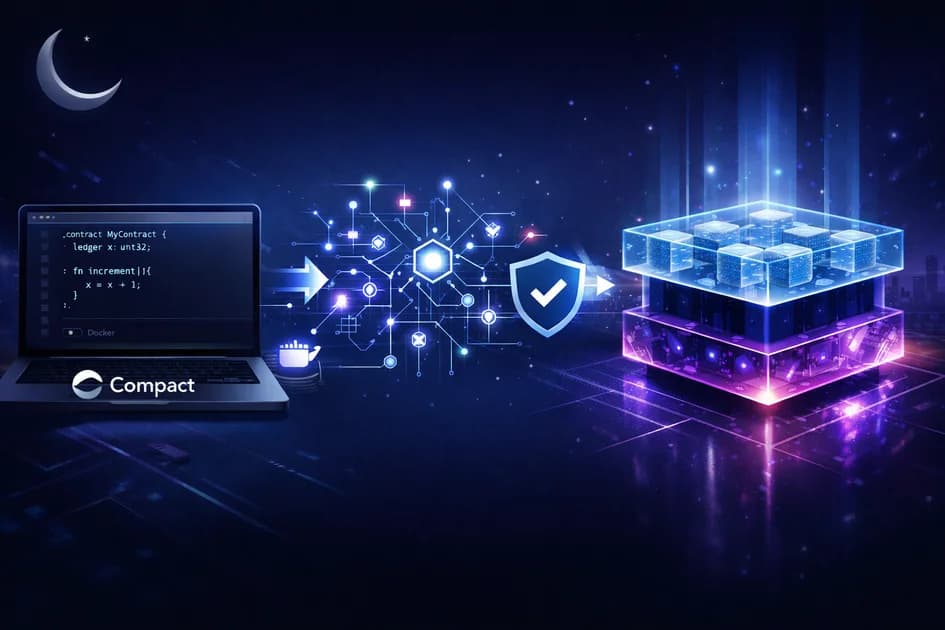

Setting up a new development environment can either take a few minutes or turn into hours of frustration. The difference usually comes down to having clear, structured guidance instead of jumping between scattered documentation. This guide is designed to give you a smooth, beginner-friendly path to setting up your environment for building on Midnight Network. By the end, you’ll have everything installed, configured, and ready to start writing your first smart contract using Compact.
What You’ll Install
Before we begin, here’s a quick overview of the tools you’ll need:
Node.js (v22+) – Runtime for development tools
Compact Compiler – Midnight’s smart contract compiler
Docker – Runs the proof server
Proof Server – Generates zero-knowledge proofs
VS Code Extension – Improves development experience
Lace Wallet – Manage test tokens and interact with apps
Let’s go step by step.
1. Install Node.js
Midnight development requires Node.js version 22 or higher.
Check your version:
node --version
If you don’t have the correct version, install it using nvm (Node Version Manager):
curl -o- https://raw.githubusercontent.com/nvm-sh/nvm/v0.40.1/install.sh | bash

# Restart terminal, then:
nvm install 22
nvm use 22

node --version
You should now see v22.x.x.
💡 Windows users: Use WSL2 (Ubuntu). Midnight tools do not run properly in PowerShell or Command Prompt.
2. Install the Compact Compiler
Compact is Midnight’s smart contract language. It compiles your code into Zero-Knowledge Proof circuits, which power private transactions.
First, ensure curl is installed (Linux/WSL):
sudo apt-get update && sudo apt-get install -y curl
Then install Compact:
curl --proto '=https' --tlsv1.2 -LsSf https://github.com/midnightntwrk/compact/releases/download/compact-v0.4.0/compact-installer.sh | sh
Reload your terminal:
source ~/.bashrc
Update and verify:
compact update
compact --version
3. Install Docker
Docker is required to run the proof server in an isolated environment.
Download Docker Desktop
Install it for your OS
Make sure it is running
Verify installation:
docker --version
💡 WSL users: Install Docker on Windows, then enable WSL Integration in Docker settings.
4. Start the Proof Server
The proof server is essential—it generates cryptographic proofs for your transactions.
Run:
docker run -p 6300:6300 midnightntwrk/proof-server:7.0.0 -- midnight-proof-server
Or run in background:
docker run -d -p 6300:6300 midnightntwrk/proof-server:7.0.0 -- midnight-proof-server
Check running containers:
docker ps
5. Install the VS Code Extension
To make development easier:
Download the Compact
.vsixextensionOpen VS Code → Extensions
Click
...→ Install from VSIXSelect the file
Test it:
mkdir ~/compact-test && touch ~/compact-test/test.compact
Open the file in VS Code — it should show Compact syntax highlighting.
6. Install the Lace Wallet
The Lace Wallet is used to manage tokens and interact with Midnight apps.
Steps:
Open Google Chrome
Install Lace from Chrome Web Store
Create a wallet
Save your seed phrase safely (offline!)
7. Get Test Tokens
To interact with the testnet, you’ll need test tokens.
Steps:
Open Lace
Copy your wallet address
Visit the Preprod Faucet
Request test tokens (tNIGHT / tDUST)
Wait a few minutes for them to arrive.
8. Verify Your Setup
Run these commands:
node --version
compact --version
docker --version
docker ps
Also check:
VS Code → syntax highlighting works
Lace wallet → shows test balance
If everything checks out, you’re ready to build
Common Issues (Quick Fixes)
Docker not running → Open Docker Desktop
compact not found → Fix PATH
Permission denied →
chmod +x ~/.compact/bin/compactWSL file issues → Use
code .inside WSL
Conclusion
You now have a complete development environment for building on Midnight Network. While the setup may seem technical at first, each component plays a key role in enabling privacy-preserving applications powered by zero-knowledge proofs.
With everything installed and verified, you’re ready for the next step: writing and deploying your first Compact smart contract.
Get everything you need here: https://docs.midnight.network/getting-started/installation
Discussion
2Join the conversation
Connect your wallet to share your thoughts and engage with the community